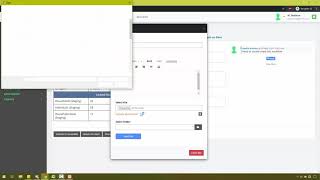
YouTube Excerpt: This section is about how to manage your workflow From manage workflow dashboard, we have various menu-bars which include; Basic info, Activity window, Audit trail, etc. On the basic info menu-bar, it displays; • Basic summary of the workflow • Task tab-: it entails the mandatory task which checks for duplicate and omission, • Action tab-: it entails view household, submit/return households and add household list. • General action tab-: You can add a comment or attach files Steps in managing workflows The first thing to do is to perform the mandatory tasks we have, which are check for duplicates and omissions. Without it you will be unable to submit your survey to the next stage of the workflow. STEP 1 Click on check for duplicates button from the task tab. Here you can select the fields you want to be unique in a particular record, for instance, you can’t have the same household ID or phone number in two different records. If the system finds any record with a similar household ID or phone number, it flags the particular record. After selecting your criteria in the required sections, click on the check duplicate button. STEP 2 On clicking on the check duplicate button, it displays all the sections with duplicate records. You can either remove or ignore duplicate record(s). Then click on the Execute and finish button. STEP 3 The process is similar to the duplicate record, it shows the questions that are left unanswered in various sections and you can either remove or ignore omissions. Click on Execute and finish button. Now you can submit the survey to the next stage of the workflow, which is the zonal MIS. On submission, the system asks for the reason for submission. The system displays a quick overview of the survey. It shows the name of the surveyor, the next stage of the workflow which is the crude data validation, etc. STEP 4 Now that you have submitted the survey to the zonal MIS. The survey can be accessed by the zonal officers by clicking on view workflow. (Zonal officer in operation) On clicking on the view workflow, it shows the recently submitted record. You split screen to view the basic summary of the record How to process record by the zonal officer Click on open workflow. From here, you can perform certain actions such as view the households, view analysis on data, etc. If the survey is not satisfactory, you can return the survey back to the state MIS for modification depending on the stated reason, and If you are satisfied with the data, then you can submit it to the data analyst and give a reasonable reason for the submission (Data analyst in operation) So the data analyst logs in to the system, access the workflow and continue with the next stage, which is backend data preparation. How to process record by the Data analyst On opening the workflow, it displays; • PMT score calculation tab • Action tab: This includes view household, submit/return households, merge workflow (you can merge multiple workflows to have a larger data set to work with), etc. • General actions: Where you can add comments and attach files Repeat the same steps from the zonal officer stage (Head NSR in operation) How to process record by the Head NSR The Head NSR logs into the system and view the data and does his analysis. He has the same options as the other users. Repeat the same steps from the Data analyst stage (National coordinator in operation) How to process record by the National coordinator . This is the final stage of our workflow. On submission to our social registry, the data set leaves the staging and it gets added to the social registry. It updates the social registry on submission. The social registry is where all the validated and approved data is kept. If the survey is not satisfactory, you can return the survey back to the Head NSR for modification, depending on the stated reason for returning the survey, and if you are satisfied with the data, then you can submit it to the Social Registry and give a reasonable reason for the submission. On submission to the social registry, if we go to view the status of our workflow, it shows completed. And if we go to our social registry, the system will show that all the records have been updated.
This section is about how to manage your workflow From manage workflow dashboard, we have various menu-bars which include; Basic info, Activity...
Curious about Managing Workflows's Color? Explore detailed estimates, income sources, and financial insights that reveal the true scope of their profile.
color style guide
Source ID: msbNWVDPZTk
Category: color style guide
View Color Profile 🔓
Disclaimer: %niche_term% estimates are based on publicly available data, media reports, and financial analysis. Actual numbers may vary.
Sponsored
Sponsored
Sponsored